
Groovepacker offers a range of export report options designed to improve your operations and help with making data-driven decisions. Understanding each of these reports can help you optimize your workflow, manage inventory, and track performance. These report options can be found in the Settings section under Backup & Export.
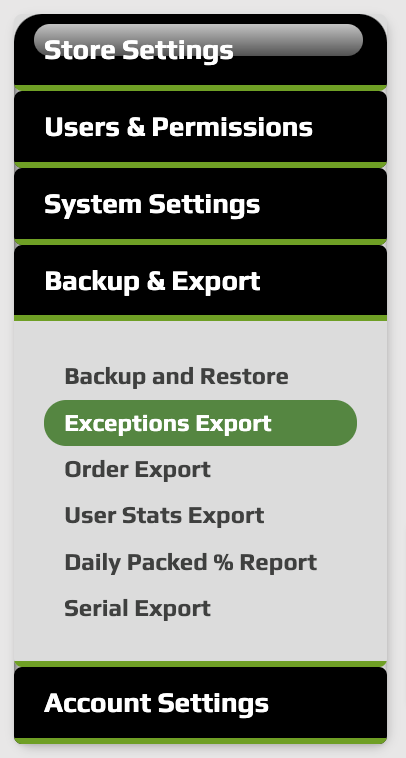
Here’s a comprehensive look at the key export options available in Groovepacker and their uses:
1. Backup Exports
In some cases, a great deal of work goes into cleaning and preparing product and kit data. The Backup Export is a crucial feature for maintaining peace of mind. This export allows you to create a backup of your product and kit data, ensuring that you have a reliable copy in case of data loss and allows for smooth restoration if needed.
2. Exceptions Report
The Exceptions Report is designed to give you visibility into all exceptions that have been manually reported by users. Each time a user records an exception by selecting a reason, entering a description, and associating it with their user profile, it is saved within the system.
This export simply gathers those saved exceptions into a single file. You can filter the export by date range to see exceptions recorded during a specific period. At this time, the report does not perform any additional analysis or grouping. It is a straightforward export of what has been entered.
See a sample Exceptions Report CSV
3. Order Export
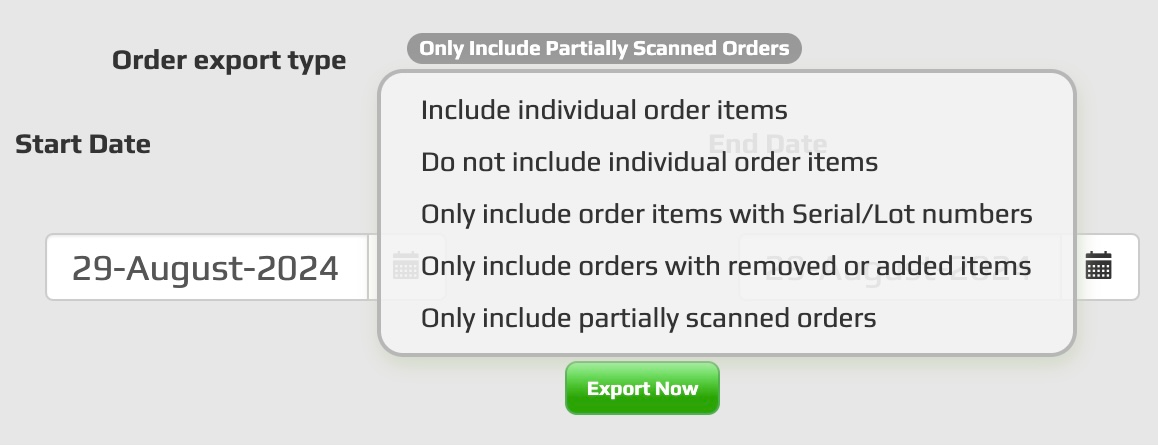
The Order Export in Groovepacker allows you to generate detailed records of all orders processed within a specific date range. This export is primarily used for keeping a record of what was scanned and when, giving you a reliable history of order activity.
When exporting orders, you have two versions to choose from:
A summary export, which shows each order with the total number of items included
A detailed export, which lists every individual order item, including quantities, scan activity, and whether items were scanned or left unscanned
This flexibility makes it easy to view order activity at either a high-level summary or a detailed item-by-item breakdown.
The export can also be scheduled to run automatically, with multiple scheduling options available depending on your needs. This ensures you always have up-to-date records without needing to run exports manually.
4. User Stats Report
The User Stats Report provides an at-a-glance view of how your team members are performing. It captures each user’s Speed Score, which reflects overall activity level, along with the number of items processed and the number of orders completed. Since orders can vary greatly in size, the item count is often the most useful measure of workload, while the processed status icon offers a quick way to confirm whether an order was fully completed.
Stats can be viewed in real time from the Admin Dashboard or exported to a CSV file for deeper analysis. The default export covers the past 30 days, but you can select any date range, update stats to include the current day, or even schedule daily report emails to be sent automatically. Exports are delivered as CSV files, making them easy to review in Excel or load into your reporting tools.
For step-by-step guidance on enabling user dashboards, selecting date ranges, updating stats, configuring export emails, and scheduling daily reports, see the full GroovePacker User Stats Export Article.
5. Daily Packed % Report
The Daily Packed Percentage Report in GroovePacker Pro helps you verify whether your fulfillment team is meeting target ship times. It shows what percentage of orders imported on a given day have been shipped, making it easy to monitor performance and quickly spot orders that may be falling behind schedule. The report also allows you to generate and export lists of unshipped orders so that action can be taken before delays impact customers.
By reviewing this report, you gain a clear measure of shipping efficiency, helping you stay on top of fulfillment goals and address bottlenecks before they grow.
For detailed instructions on using the list, applying processing time adjustments, and scheduling exports, see the Daily Packed Percentage List and Export Guide.
7. Serial/Lot/Batch Export Report
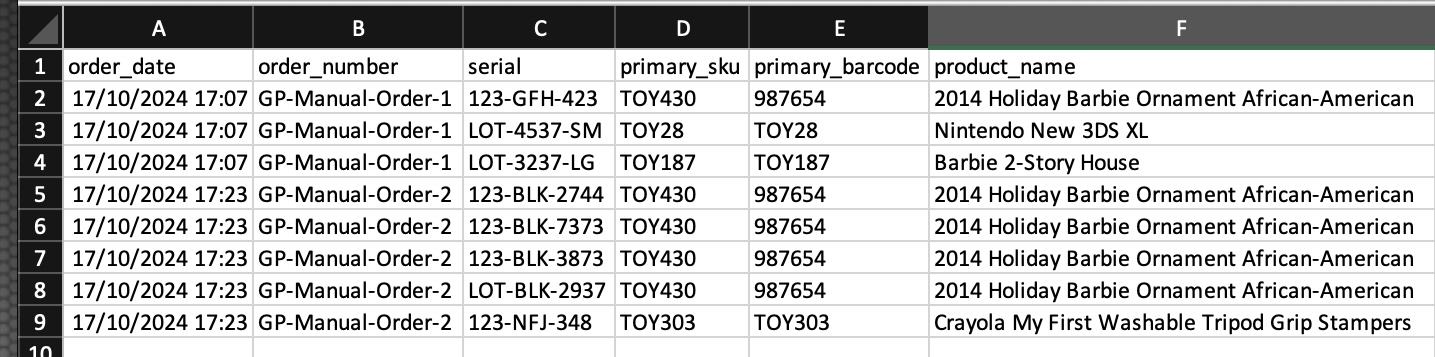
The Serial Lot Batch Export Report in GroovePacker allows you to export all serial, lot, or batch numbers that were recorded during scanning, along with the order details they are tied to. Each time a serial, lot, or batch number is captured, it is saved in the system. This report then lets you generate a record of every instance a serial, lot, or batch number was recorded within a specific date range.
While this report does not manage inventory based on serial, lot, or batch numbers, it is a crucial tool for tracing specific items. For example, you can use it to track which orders received a particular item, making it especially helpful for conducting recalls or verifying that specific units were shipped.
6. Low of Stock Report
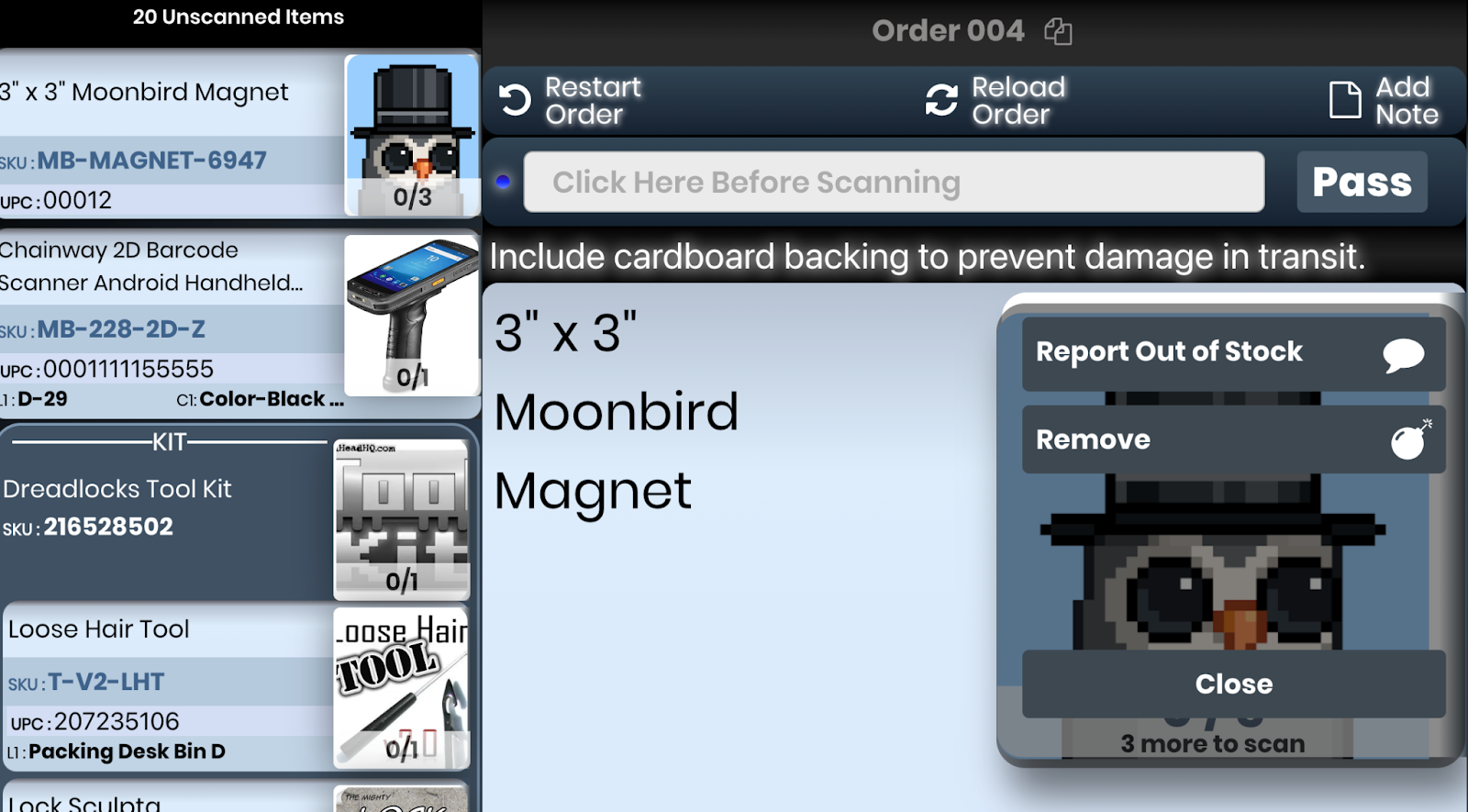
The Low Stock Report feature helps your team quickly identify products with low stock levels so they can be reordered.
If a picker notices an item is out of stock while scanning, they can tap the menu button on the picture of the suggested item to report it. This sends a message to the email address or addresses saved in Settings, allowing your team to quickly address the shortage and avoid disruptions in the picking process.
By staying on top of out-of-stock items, you can ensure that customer orders are fulfilled without delay.
7. Product Export
The Product Export in GroovePacker lets you quickly export your product data, including SKU, barcode, image, and inventory count, to a CSV file. You can choose to export all products, only active products, or specific lists, such as new items that may be missing barcodes. Once exported, the CSV is sent to your System Notifications email, making it easy to review, update, or bulk-edit your product information.
For step-by-step instructions on selecting products and managing export options, see the full GroovePacker Product Export guide.