
GroovePacker integrates with BigCommerce using BigCommerce’s API, allowing orders to be imported directly into GroovePacker for accurate and efficient fulfillment. This video and article walks through the steps required to connect your BigCommerce store and begin importing orders.
Process
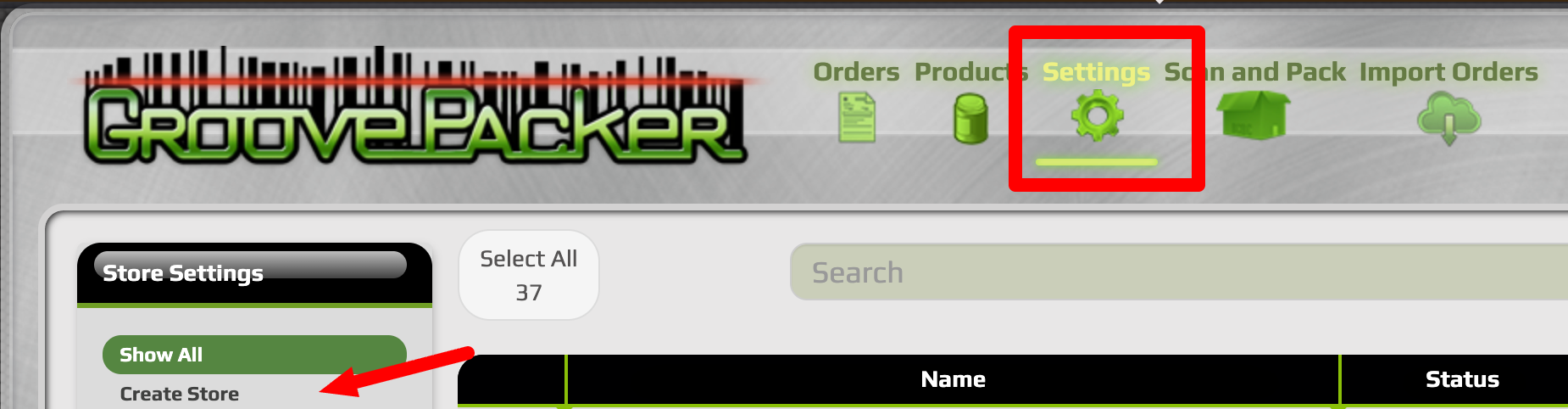
Click on Settings at the top of the GroovePacker page to access the settings section, then select Create Store
Give the store a name
Choose BigCommerce from the Store Type dropdown.
BigCommerce API Setup
To connect the store to BigCommerce, you will need the Store Hash, Client ID, and Access Token.
Log in to your BigCommerce admin.
- Click Settings.
- Scroll down and select API Accounts.
- Click Store-Level API Accounts.
- Select Create API Account.

- Give the API account a name (for example, GroovePacker).
Copy the Store Hash
Locate the Store Hash. This is the value that appears after /stores/.
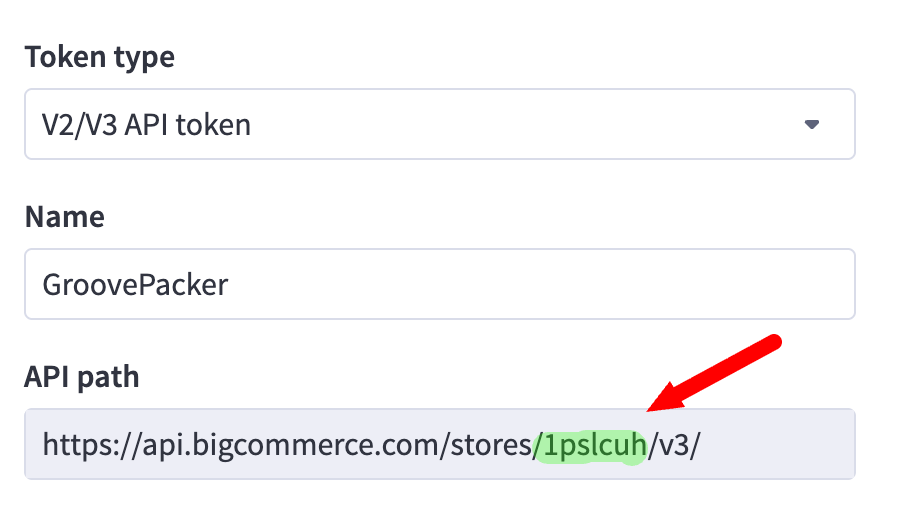
- Copy the Store Hash from BigCommerce
- Paste it into the Store Hash field in GroovePacker
Set API Permissions
Set the following permissions to Modify:
Orders
Products
Inventory
Save the API account.
Enter API Credentials in GroovePacker
Copy the Client ID from BigCommerce and paste it into the Client ID field in GroovePacker.
Copy the Access Token from BigCommerce and paste it into the Access Token field in GroovePacker.
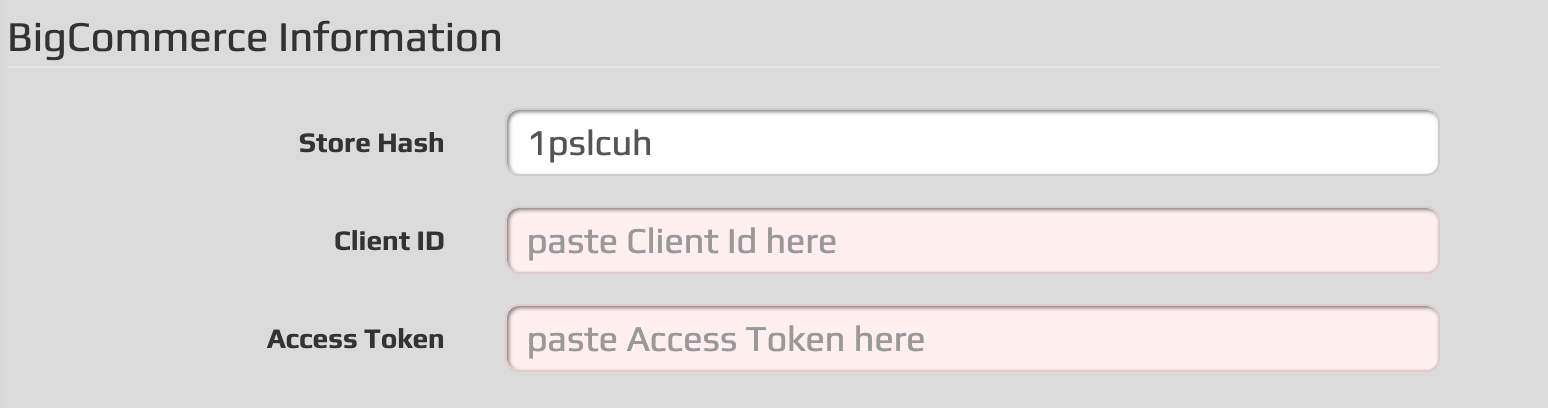
Scroll to the bottom of the page and click Save and Close.
Simple as that! Your BigCommerce store is now connected to GroovePacker and ready to import orders. In nearly all cases, you will want to import all products into GroovePacker and confirm they appear correctly (SKU, aliases, kits) prior to importing orders.